
No products in the cart.

EditMicro.co.za is Accessible!

Thanks to the remarkable power of TextHelp’s BrowseAloud Toolbar – our entire website www.editmicro.co.za is now accessible to those who have difficulty with reading printed text.
This is just another way in which Edit Microsystems are supporting inclusive education and the inclusion of individuals with barriers.
Who is it for?
BrowseAloud enables text-to-speech output, magnification and other support features for the 20% of the population that require some assistance with reading. Users include individuals with dyslexia, learning difficulties, mild visual impairments and those with English or Afrikaans (beta) as a second language.
BrowseAloud is also helpful for those who simply don’t have time to read through all the text on a page but would rather listen to this read aloud!
BrowseAloud is FREE to the user and requires NO INSTALLATION. Any school, college, university, organisation, government department or company can purchase a license for BrowseAloud to be enabled on their website – allowing their website users to have accessibility for free, This model allows for individuals who cannot afford to purchase their own assistive software to have reading assistance on their personal device.
How does it work?
Go to the BrowseAloud enabled website www.editmicro.co.za
Click on the small BrowseAloud icon at the top right of the page.

This will launch the BrowseAloud Toolbar. See below for an overview of the different buttons
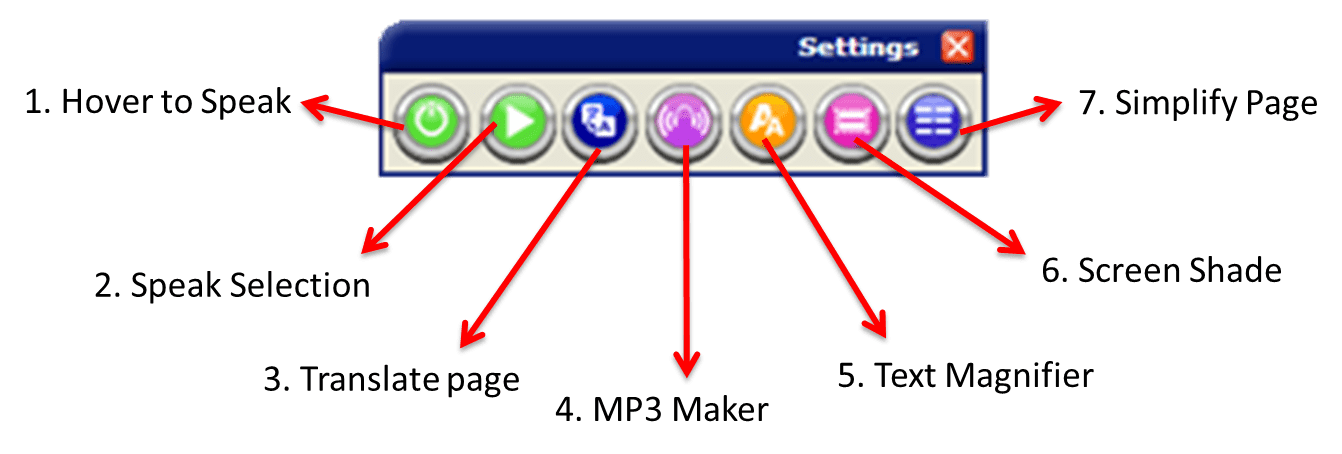
You can move the toolbar anywhere in your browser by clicking on the top blue bar and dragging it to the desired location.
Features: From Left to right
1. Hover to Speak
By default, BrowseAloud will launch in “hover to speak” mode. BrowseAloud will read out loud the text to you, when you hover your mouse over the selected text. To turn this feature off, click on the first red button on the toolbar. The button will turn green. You can use the first button to turn this feature on or off in the future. You can click on the second button, the red stop icon, to stop the speech at any time.
2. Speak Selected Text
When the “hover to speak” function is off, the second button becomes the “speak selected text” button. Use your mouse to highlight a portion of text that you want to have read aloud. Then click on the green play icon, the second icon on the toolbar. You can use the stop button to stop the speech at any time – this is the third button.
3. Translate Page
This feature uses a direct translate tool to translate the text on the page into another language. This may take a few moments to load.
4. MP3 Maker
Select a portion of text which you would like to have converted into a text-to-speech mp3. Click on the mp3 maker button. Name your file. BrowseAloud will then create the file and start to download the mp3. When it is finished, you will find the mp3 in your default downloads folder.
5. Text Magnifier
Use this button to toggle the text magnifier on or off when using either the ‘hover to speak’ or ‘speak selection’ functions. When it is on, a line of magnified text will appear at the top of your page while using the text-to-speak.
6. Screen Shade
This feature you can use to grey out the web page except for the portion underneath your mouse cursor. This can help you to focus or to find the mouse cursor.
7. Simplify Page
This feature will simplify the information on the screen – for example by removing images.
Settings
You can click on the “settings” button to change further settings, including the size of the text in the magnifier and reading speed.
You can register, to have access to your preferred settings on any device when you log in, or skip registration.
Is your website Accessible?
Contact us for more information on BrowseAloud or Read & Write Gold (TextHelp’s offline, computer-installed accessibility software) and how you can make your website more accessible.
