No products in the cart.

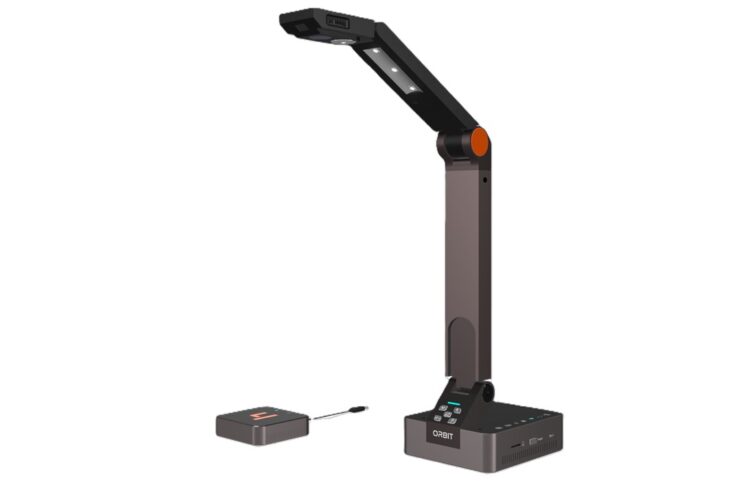

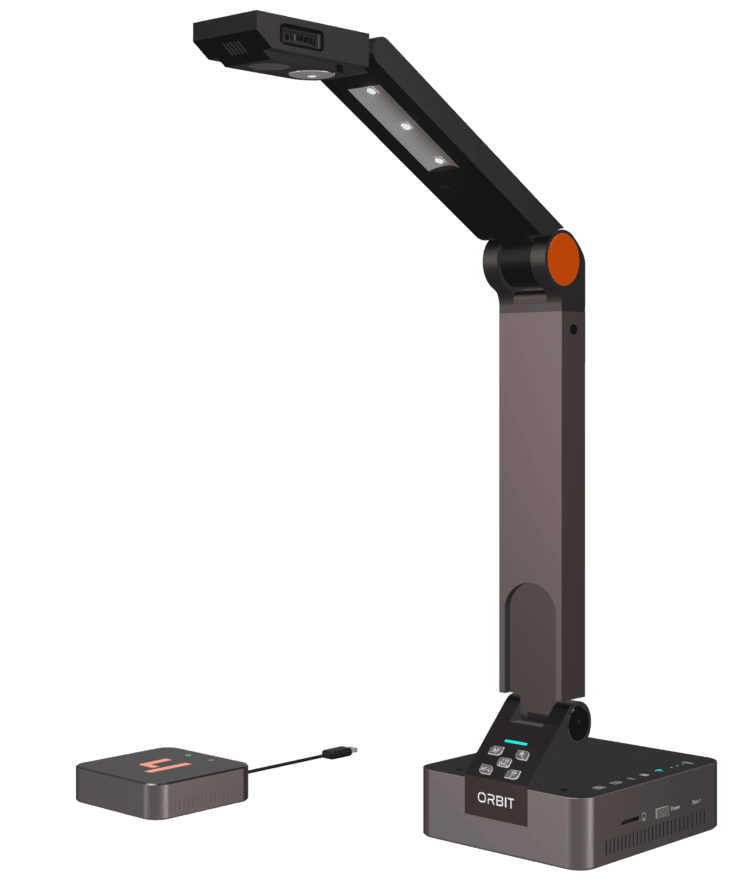
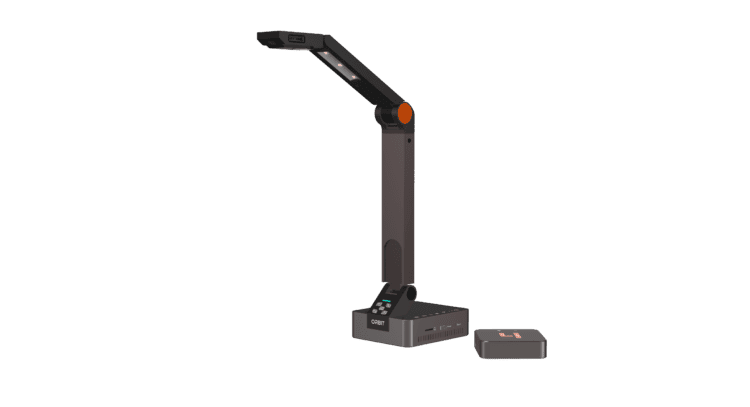
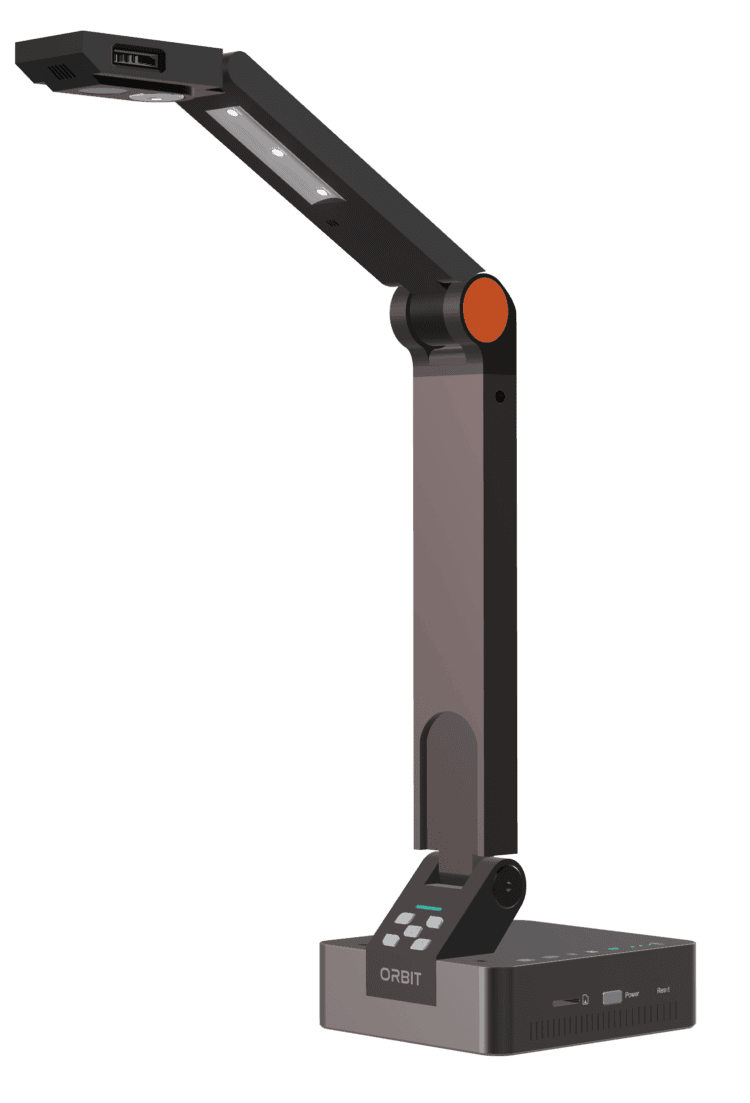


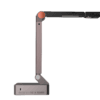
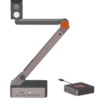
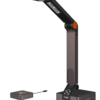
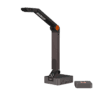


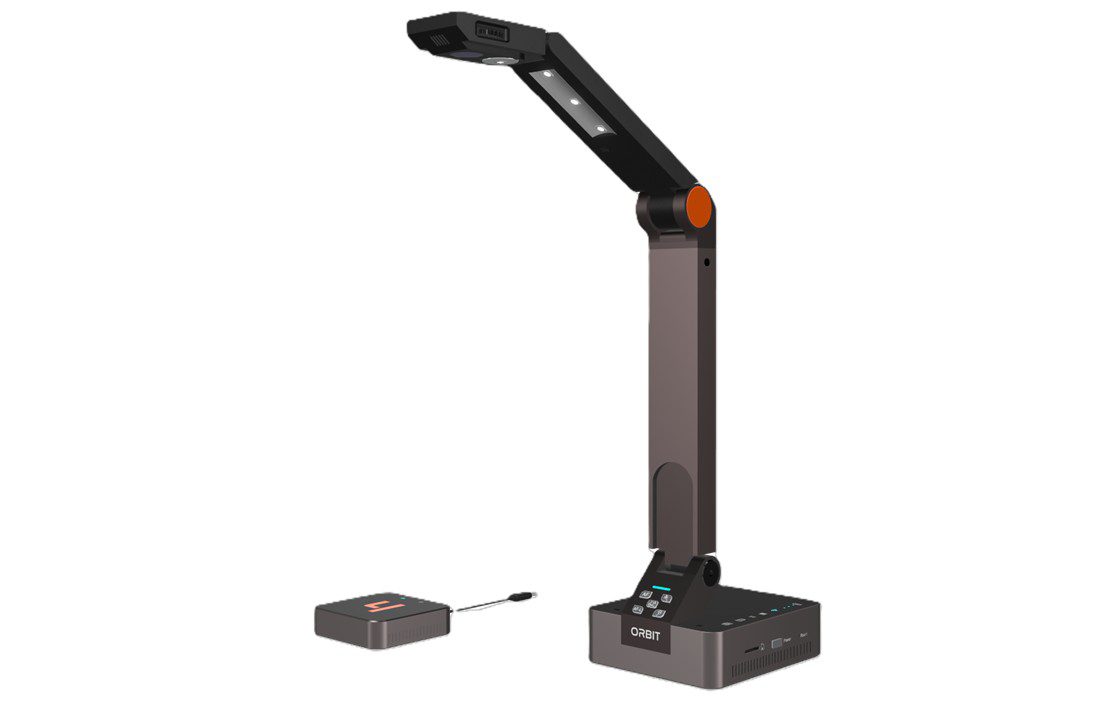
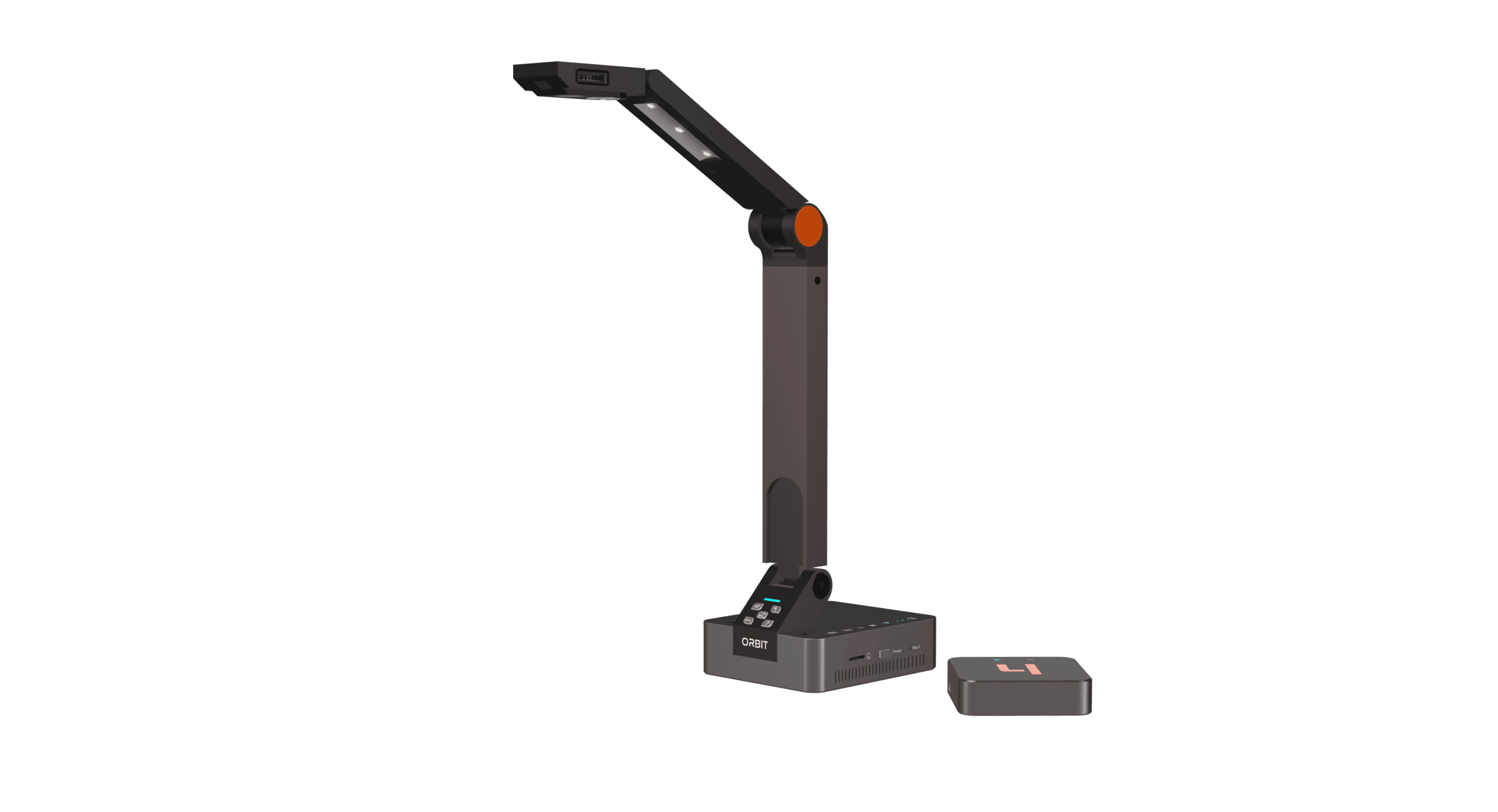
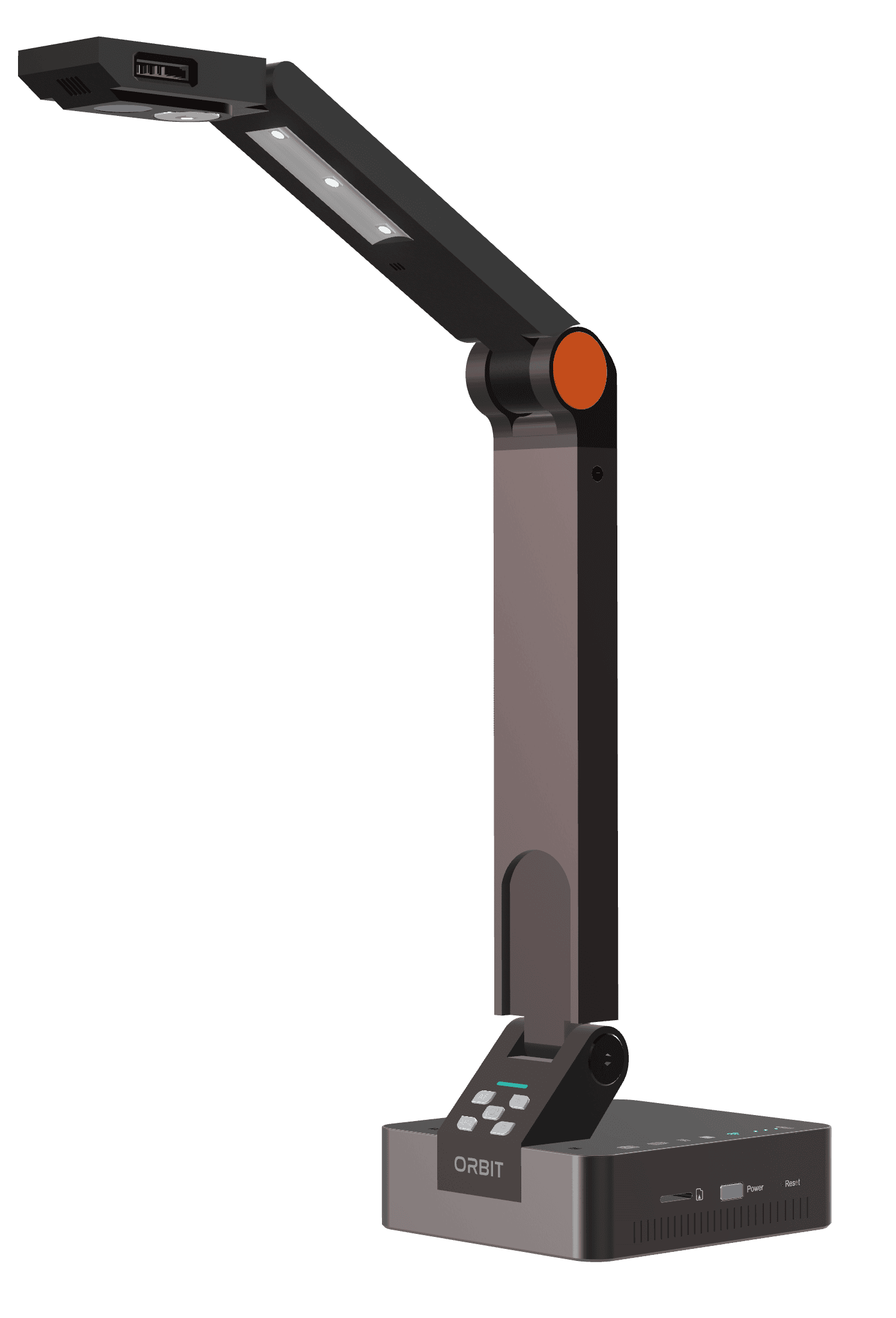
Hovercam Orbit AIR
– Untether Teachers.
– Unleash Engagement.
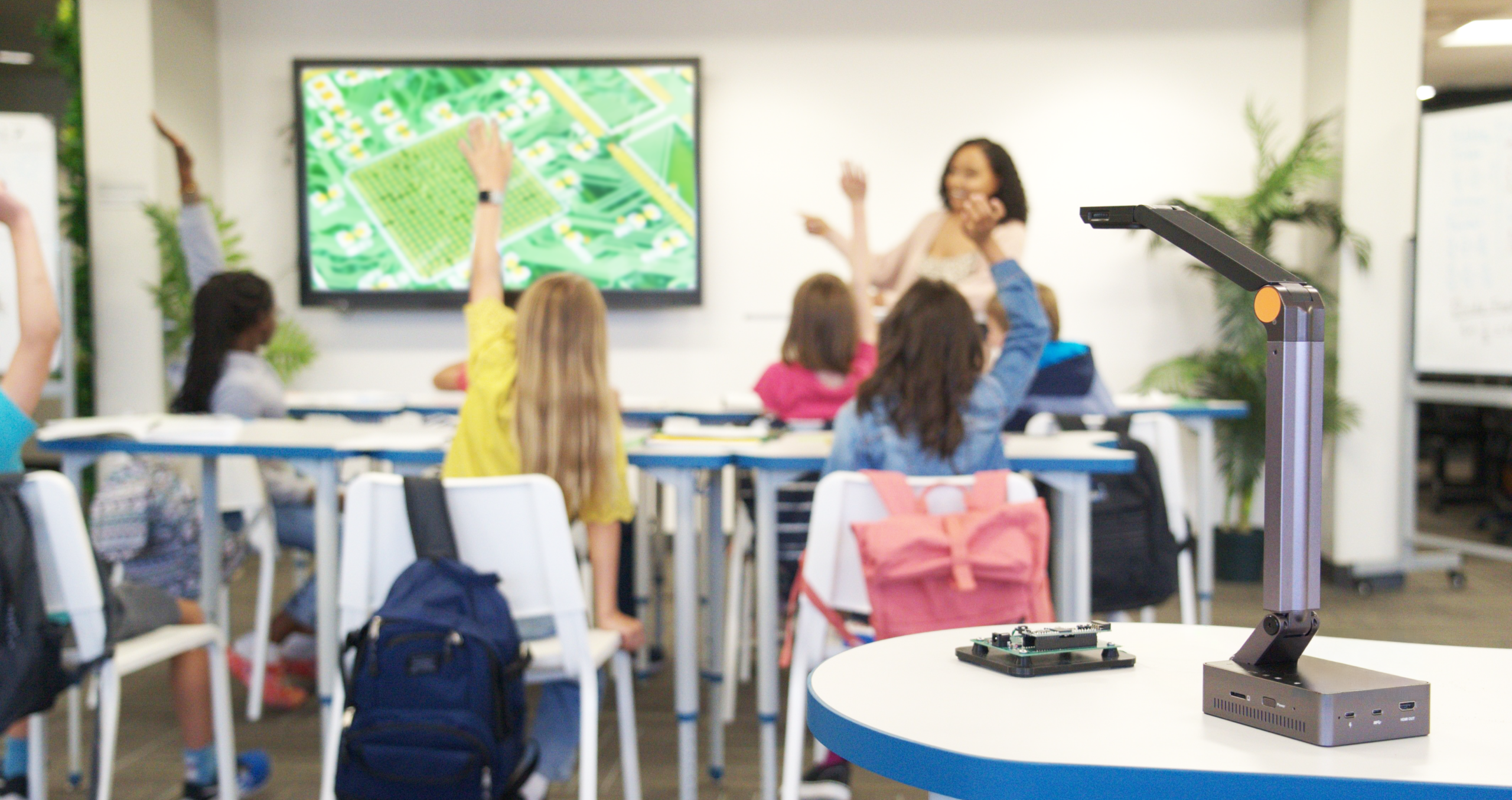
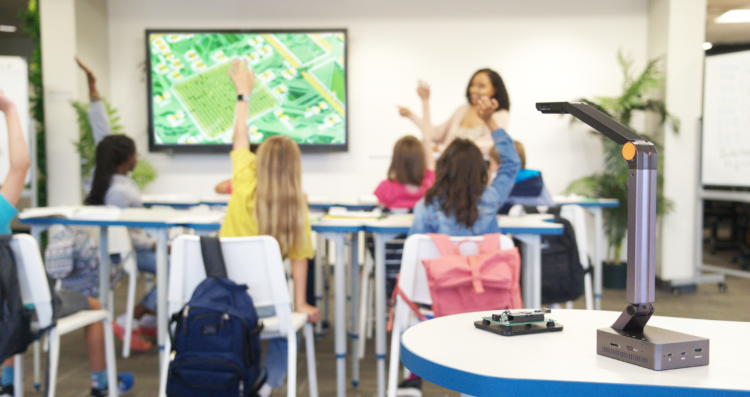
Teach from anywhere in the classroom, and even show students’ work on the big screen.
Category: Document Cameras / Microscopes
Hovercam Orbit AIR, world’s only plug-and-play wireless USB + HDMI document camera
Wireless, Without The Hassle.
No Drivers.
No software.
No networking.
No passwords.
No setup.
No problem.

Why Go Wireless?
Designed for Teacher Mobility and Student Engagement
Declutter — Untether — Show Student Work — Unlock New Pedagogy
How it Works
Orbit Air’s Wired-Wireless Hybrid Architecture allows it to be completely untethered and mobile, yet still recognized as a local USB device by the computer – as if there was an invisible wire connecting the camera to the host computer device. This design makes Orbit the only wireless camera that has the benefits of wired cameras: broad compatibility, plug-n-play simplicity, and the highest level security.
Blast Ahead of the Rest
Wide Compatibility – Unmatched Security – Plug-n-Play Simplicity
 The only wireless document camera that is
Not On Your Network.
Some competitors also say their camera’s aren’t on your network, but that can be misleading.

 Up to 4K @30FPS Over Isolated Wireless Link
Connect the included receiver to your display or device and enjoy nearly lossless clarity and virtually lag-free casting.
 Zero Network Settings. Zero Drivers. Instant Setup.
Automatic configuration from the factory for a plug-and- play, zero effort setup experience.
 Accessible By Any App On Windows, MacOS, ChromeOS, and Android With No Special Software Required
InvisiWire is the only technology that emulates a wired USB connection.
Why is Orbit the only safe bet when it comes to network security?
- NOT ON YOUR WIFI NETWORK
- Near-Zero Attack Surface
- Segmented Network
- Locked Down Device
- End-to-End Encryption
- Leverages Generic Drivers
- No Vendor App or Drivers
Setting Up Is As Easy As 1…
Step 1: Plug the included transmitter into your computer via USB or display via HDMI
Step 2: There is no step 2.
IT-Friendly
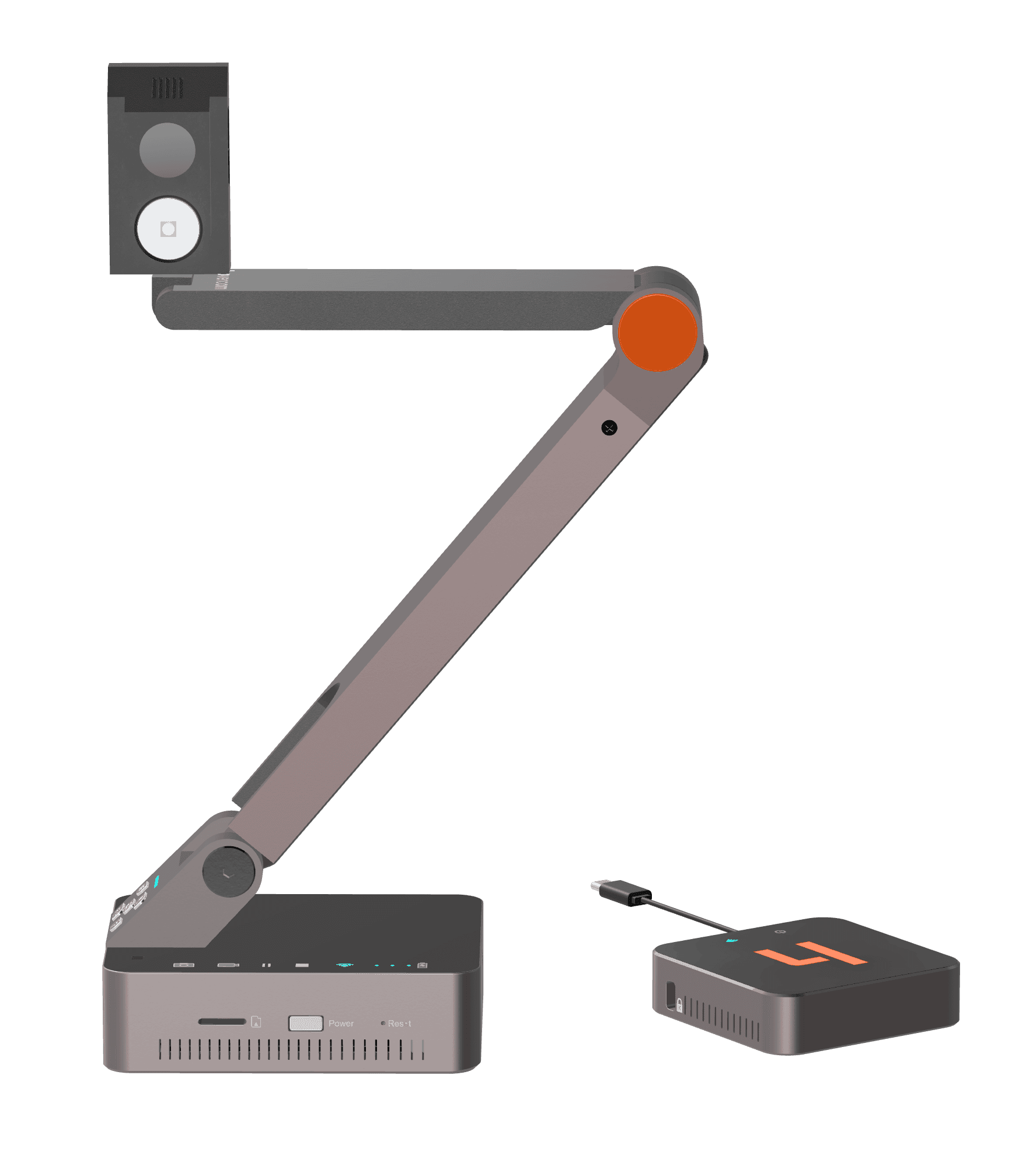
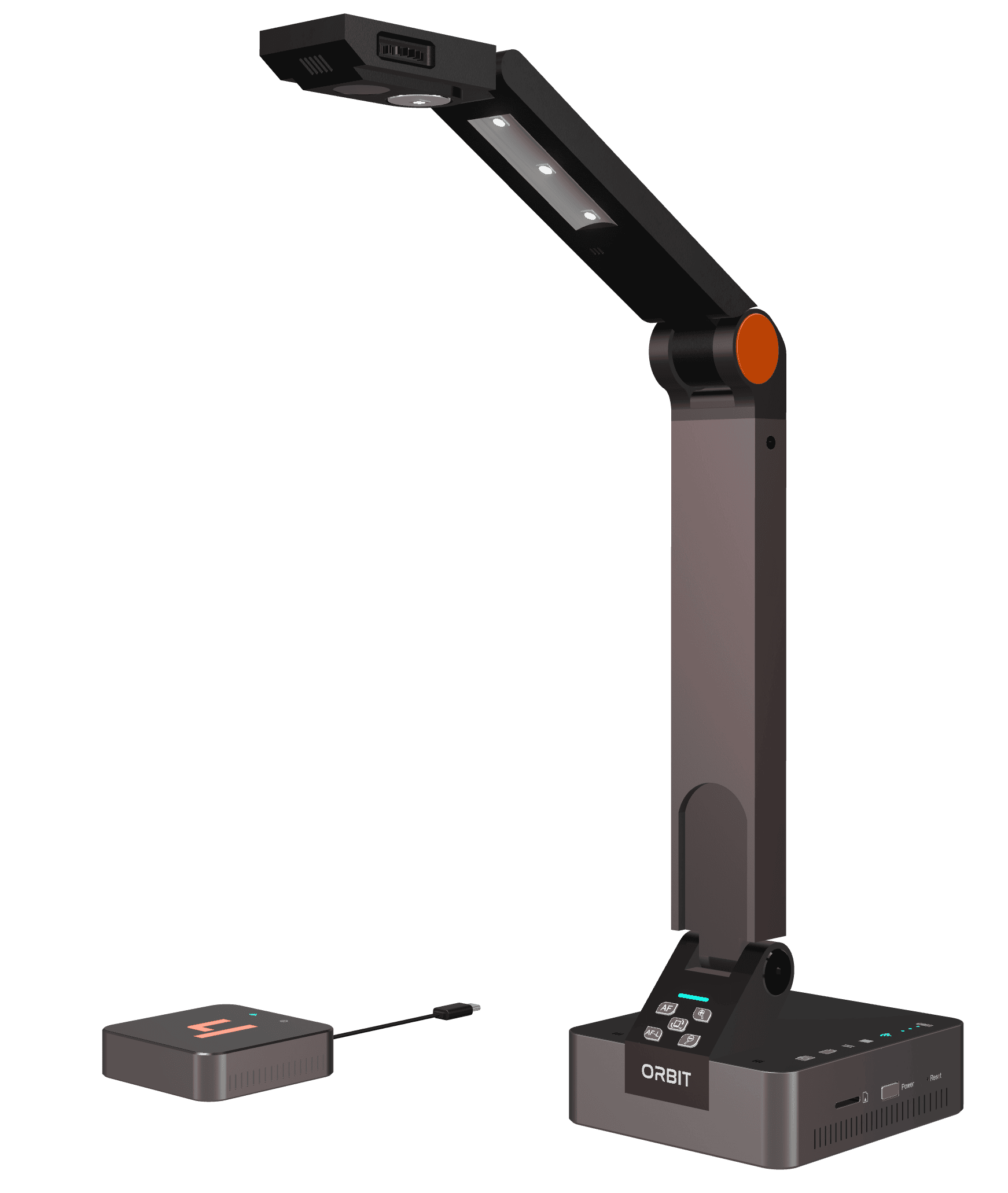
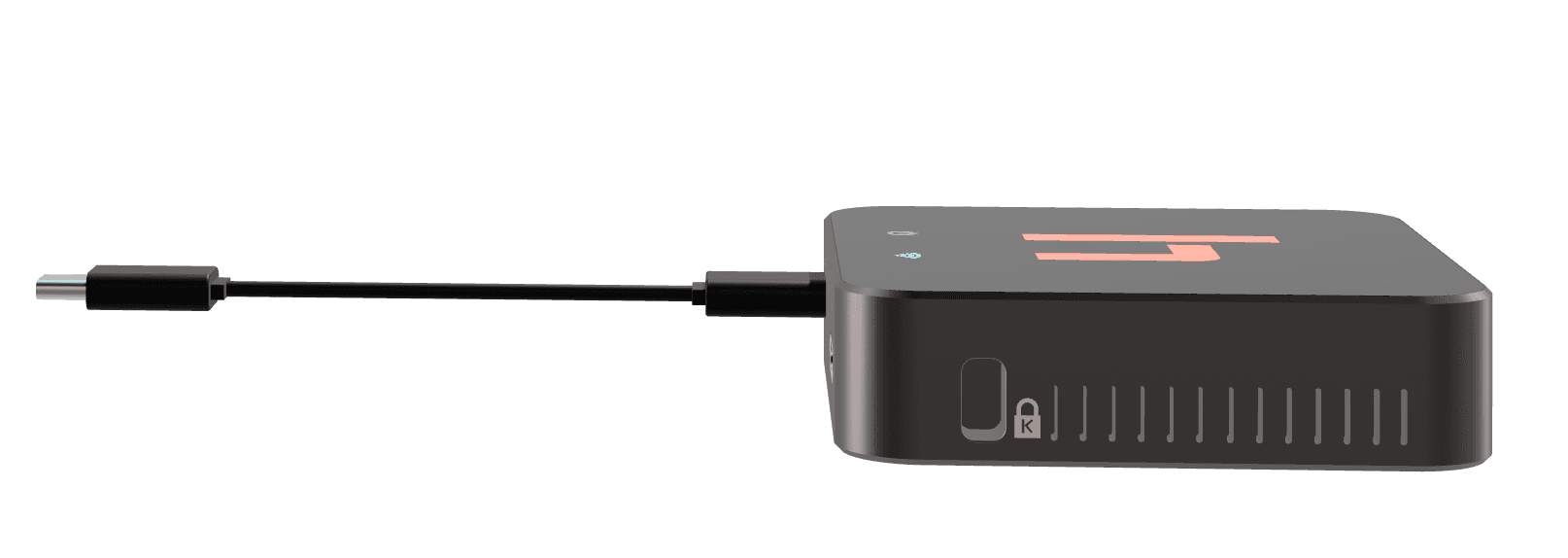
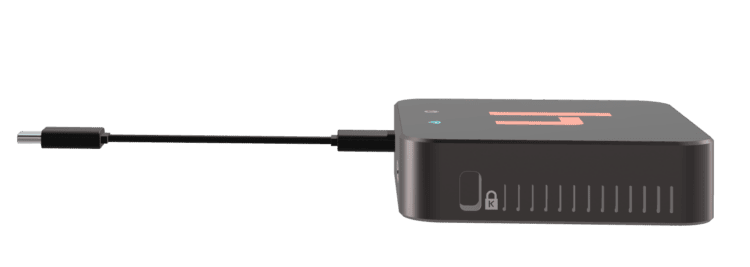
Orbit Air includes a wireless transmitter that you plug into a PC, Mac, Chromebook or Android Interactive Panel via USB, or to your display via HDMI.
And unlike other “wireless” document cameras, you don’t have to sacrifice anything:
- No time setting parameters
- No entering passwords
- No software changes
- No drivers to install
- No security issues
- No MiraCast
- No hassle on IT Staff
No Other Camera Like It
13 Megapixel Camera Sensor with Autofocus
Provides stunning details, crisp text, and remarkable image clarity. Turn on autofocus to always keep your content sharp, or lock the focus to limit focus searching.

Incredible Zoom With Optical Clarity
800x total zoom. And thanks to our patented Adaptive Sensor Resolution (ASR) technology, you can zoom-in 4x before losing resolution.
Onboard Controls & Local Recording
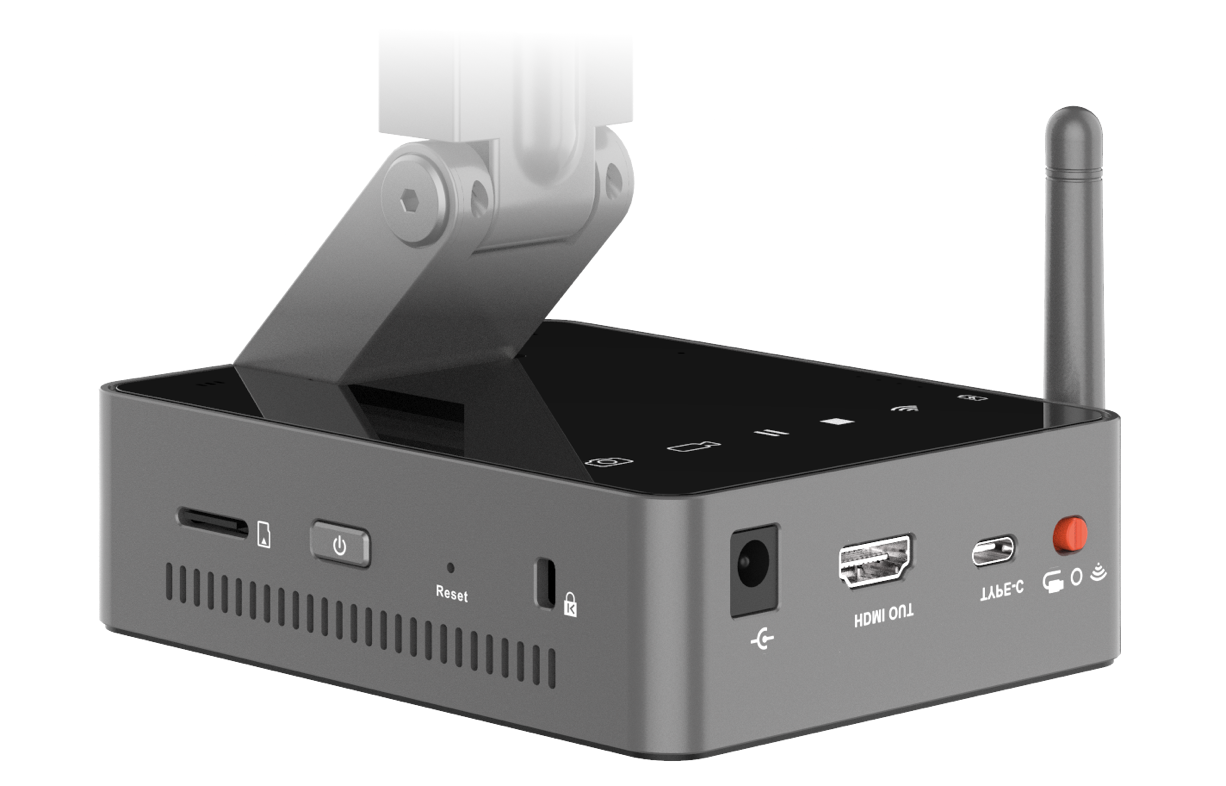
Record videos, take snapshots, and adjust the camera image with the built-in microphone and convenient onboard controls. Connect an SD card and store hours of lessons.
Integrated Battery
When we say “wireless”, we mean it. Get up to 10 hours of all-day wireless teaching thanks to the powerful 9800 mAh battery.

Compact Yet Sturdy
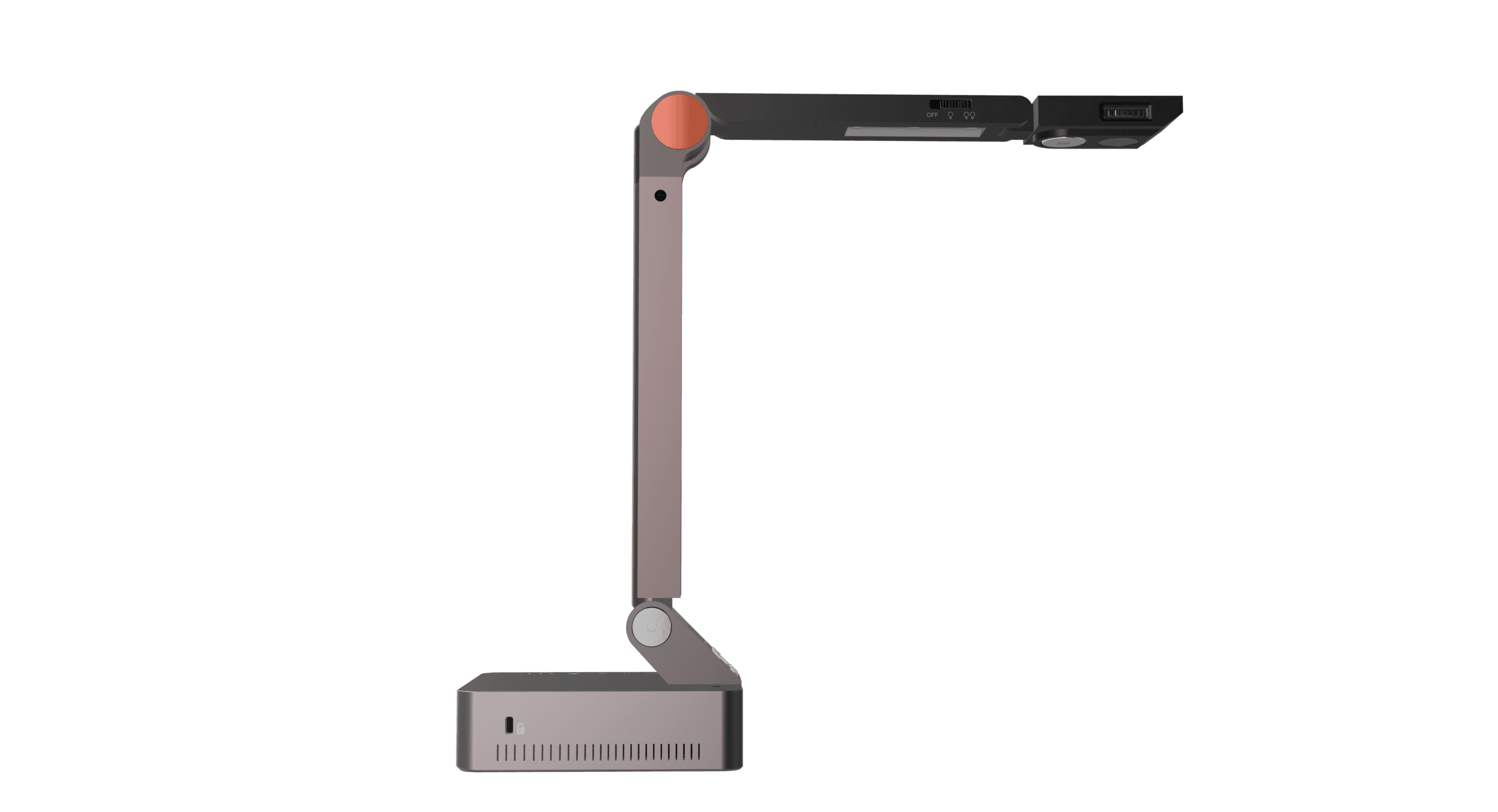
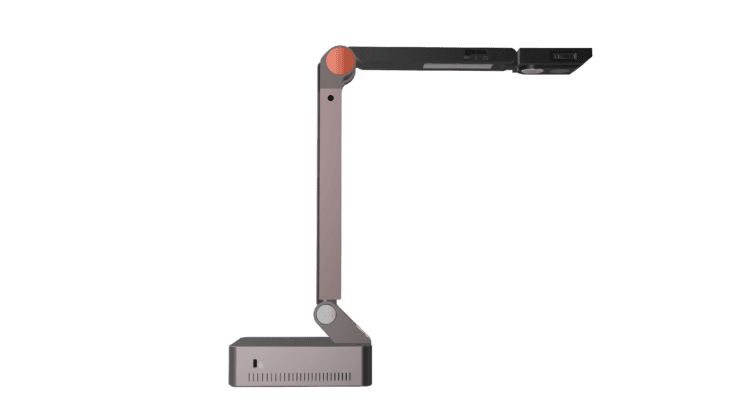
Nobody likes giant document cameras. Orbit folds down to stuff-in-your-bag size for use on the go.

Feature-Packed Software Included
With features such as Annotation, Picture-in-Picture, and Lesson Recording, our award-winning Flex 11 software takes your Orbit to a whole new level.
Software Features

Picture-in-Picture
Restore face-to-face engagement with the Picture-in-Picture feature, which uses your webcam to show your face while your document camera shows the content being taught.

Annotation and The Digital Whiteboard
Freehand draw on top of the live camera image (and recordings), create shapes, type text boxes, and more. Use the digital whiteboard to interact with your doc cam’s media in ways you never thought of.

Lesson Recording
Easily record lessons with the touch of a button. Use desktop sharing and screen recording to show and record other programs (with your Picture-in-Picture window and annotations recorded, too!)

Schedule, start, and run Zoom meetings right from our software’s new Zoom Button.
Also Works With

Frequently Asked Questions – HoverCam Orbit Pro + Orbit Air
Is Orbit on the network?
No. Orbit Pro and Orbit Air are designed to operate outside your institution’s existing network infrastructure. The wireless link happens between the camera and receiver, while the host device sees Orbit as a standard USB UVC camera or direct HDMI source. No proprietary networking driver or network-based camera connection is required on the host device.
What makes Orbit Pro / Orbit Air different from other wireless document cameras?
Most competing wireless document cameras rely on a network-style connection model at the host device, often through a vendor app, proprietary networking workflow, or a secondary NIC-style dongle. That means added IT review burden, added software complexity, and a less direct compatibility path than a standard USB camera workflow. Orbit is different because it is built around a wired-wireless hybrid architecture that lets the host device see the camera as a standard USB UVC device or HDMI source instead of a network camera. That preserves plug-and-play simplicity, broad compatibility, and a much cleaner deployment model.
Orbit Pro adds another major differentiator: to our knowledge, it is the only wireless document camera using 60 GHz mmWave technology, which does not pass through classroom walls and requires line of sight between camera and receiver.
Do I need to make any network changes to use Orbit?
No. There are no SSIDs to configure, no passwords to enter, no access points to provision, and no network settings to change. Orbit Pro and Orbit Air are designed to work independently of your school’s existing network infrastructure.
Do I need to install drivers or software?
No. Orbit is designed for true plug-and-play use. In USB mode, the receiver presents Orbit to the host as a standard USB UVC camera, so no proprietary driver is required. Optional HoverCam Flex software is available for annotation, whiteboarding, recording, scanning, and other advanced features, but it is not required for basic camera use.
How long does setup take?
Typically less than a minute. In most cases, setup is simply: connect the receiver, power on the camera, open your preferred camera app, and select “HoverCam Orbit” if needed. Initial connection may take a short moment while the camera and receiver establish the wireless link.
How long does initial connection take?
Initial connection usually takes around 30 seconds.
Does Orbit work with PCs, Macs, Chromebooks, and interactive flat panels?
Yes. Orbit is designed to work with Windows, macOS, ChromeOS, and Android-based interactive flat panels through USB UVC, as well as with displays through HDMI. Because the receiver presents Orbit like a standard USB camera or HDMI source, compatibility is much broader than with app-dependent network camera systems.
Does it use WiFi?
No. Orbit Pro uses 60 GHz mmWave technology for its wireless link. Orbit Air uses a dedicated private 5 GHz wireless link, but it does not connect to your institution’s Wi-Fi network, nor does it appear to the host device as a network client. In both cases, Orbit connects to the host device simply as a USB UVC camera or HDMI feed, not as a network device.
What’s the difference between a WiFi Camera (IP Camera) and a Wireless USB Camera?
A WiFi or IP camera uses a network-based connection model. That means video is transported through a network stack, typically requiring software, app-based discovery, or a proprietary workflow to receive and display the image.
A Wireless USB camera works differently. It preserves the behavior of a normal USB camera on the host side, so the receiving device sees standard USB UVC and/or UAC data just as if the camera were plugged in directly by cable. That is what enables broad compatibility and true plug-and-play operation across common operating systems and camera-enabled applications.
That distinction is the heart of Orbit’s design. To our knowledge, Orbit Pro and Orbit Air are the only wireless document cameras built around this Wireless USB approach.
Does Orbit interfere with or slow down my WiFi network?
Orbit Pro operates in the 60 GHz band rather than standard Wi-Fi bands, so it does not interfere with classroom Wi-Fi. Orbit Air uses a dedicated private 5 GHz link and remains separate from your existing network infrastructure, though like any product operating in 5 GHz spectrum, it can be more sensitive in extremely crowded RF environments.
Does Orbit use Bluetooth?
No. Orbit Pro uses a dedicated private 60 GHz mmWave wireless link, and Orbit Air uses a dedicated private 5 GHz wireless link.
What is the wireless range for Orbit Pro vs Orbit Air?
Orbit Pro has been tested beyond 100 feet with clear line of sight maintained. Orbit Air uses standard 5 GHz range (typically up to 100 feet or more in typical classroom conditions) and does not require line of sight.
Are there other Wireless USB cameras?
To our knowledge, Orbit Pro and Orbit Air are the only wireless document cameras built around this true Wireless USB approach, where the host device sees the camera as a standard local USB UVC device rather than a network camera.
Can I use Miracast, AirPlay, Chromecast, or other web-based screen sharing protocols?
No. Orbit is not designed around Miracast, AirPlay, Chromecast, or browser-based casting protocols. Orbit uses its own direct wireless link and outputs through the included receiver as USB UVC or HDMI.
How do you setup Orbit?
It’s simple and plug-and-play.
Step 1) Connect the receiver to a PC, Mac, Chromebook, or Android interactive flat panel via USB, or to a display via HDMI.
Step 2) Turn on the camera.
Then open any camera app and select “HoverCam Orbit” if needed. The camera and receiver are factory paired and automatically search for one another. USB-A and USB-C cables are included for flexible computer connectivity.
What does deployment look like across multiple classrooms?
Orbit is designed to minimize deployment effort. There is no network provisioning, no SSID setup, no passwords, no driver rollout, and no need to install proprietary networking software on teacher devices. Because the units are factory paired and plug-and-play, rollout is much simpler than with network-dependent wireless camera systems.
What output options are available for Orbit?
Orbit supports both wireless and wired output options. Wirelessly, the included receiver can connect by USB to a host device or by HDMI to a display. Wired, the camera can connect directly by HDMI. Orbit can also support simultaneous wireless USB and HDMI output through the receiver workflow.
Can you output USB and HDMI wirelessly at the same time?
Yes. Orbit can support wireless USB output to a host device and HDMI output to a display at the same time through the included receiver workflow.
Is there a dongle?
Yes. Orbit includes a wireless receiver for wireless USB or HDMI use.
Do I need to use the dongle?
If you are using Orbit wirelessly, yes. The included receiver is required. Orbit may also be used wired through a direct HDMI connection from the camera.
Does it work with projectors?
Yes. You can connect the receiver to a projector’s HDMI input and power the receiver appropriately. The projector will display Orbit just like any other HDMI source.
Does it work with TVs?
Yes. You can connect the receiver to a TV’s HDMI input and power the receiver appropriately. The TV will display Orbit like any other HDMI source.
Does it work with Mac?
Yes. Orbit is recognized by macOS as a standard USB camera in USB mode, and our optional Flex software is available for added features.
Does it work with Chromebooks?
Yes. Orbit is designed to work with Chromebooks that support standard USB webcam functionality. We also offer Chromebook-compatible software options for added functionality. As with any USB camera, experience can vary with the capabilities and policies of the specific device.
Does it work with an Interactive Flat Panel?
Yes. The receiver can connect directly to many Android-based interactive flat panels through USB for camera use or through HDMI for direct display output. Some panel vendors may restrict camera access inside certain apps, so compatibility can depend on the panel’s USB camera support and software policies.
Does it work with other apps? Can I use it with Zoom, Microsoft Teams, Screencastify, etc.?
Yes. In USB mode, Orbit appears as a standard USB UVC camera, so it can be used by video conferencing, recording, and classroom software that supports USB cameras. Our optional Flex software adds more document camera features, but it is not required for basic compatibility.
Does it work with video conferencing software like Zoom, Teams, WebEx, etc.?
Yes. Orbit appears as a standard USB webcam, so it works natively with Zoom, Microsoft Teams, Webex, Google Meet, and other video conferencing platforms that support USB cameras.
Does it work with any laptops without USB-C?
We include both USB-A and USB-C cables so Orbit can work with laptops that do not have USB-C, provided the port meets data and power supply requirements for the receiver.
Does it work with USB 2.0?
Yes, though USB 3.0 or higher is recommended for the best experience. USB 2.0 may limit overall performance compared with higher-throughput ports.
What training do teachers typically need?
Very little. In most environments, teachers simply connect the receiver, turn on the camera, and open their preferred camera app or classroom software. Because Orbit behaves like a standard USB camera or HDMI source, the learning curve is far lower than with network-dependent wireless camera systems.
What’s the main difference between Orbit Pro and Orbit Air?
The biggest difference is the wireless technology. Orbit Pro uses 60 GHz mmWave and requires clear line of sight between the camera and receiver, which helps avoid traditional Wi-Fi-band interference. Orbit Air uses a dedicated private 5 GHz wireless link, which offers more flexible placement while still staying separate from your institution’s network infrastructure.
How long does the battery last?
Orbit Pro: Up to 6 hours with normal use.
Orbit Air: Up to 8 hours with normal use.
How long does it take to charge?
Charging takes approximately 3 hours using the included DC 12V power adapter. We recommend charging the camera overnight and during the day while not in use.
Is there a microphone?
Yes. Orbit includes a built-in microphone for video and audio recording.
Is there a warranty?
Yes. Orbit includes a five-year parts and labor warranty against manufacturer defects. The warranty does not cover normal battery depreciation or general wear from use.